 Eikonaut
Features
What Eikonaut does, in the order of the work: import, pick, caption, deliver.
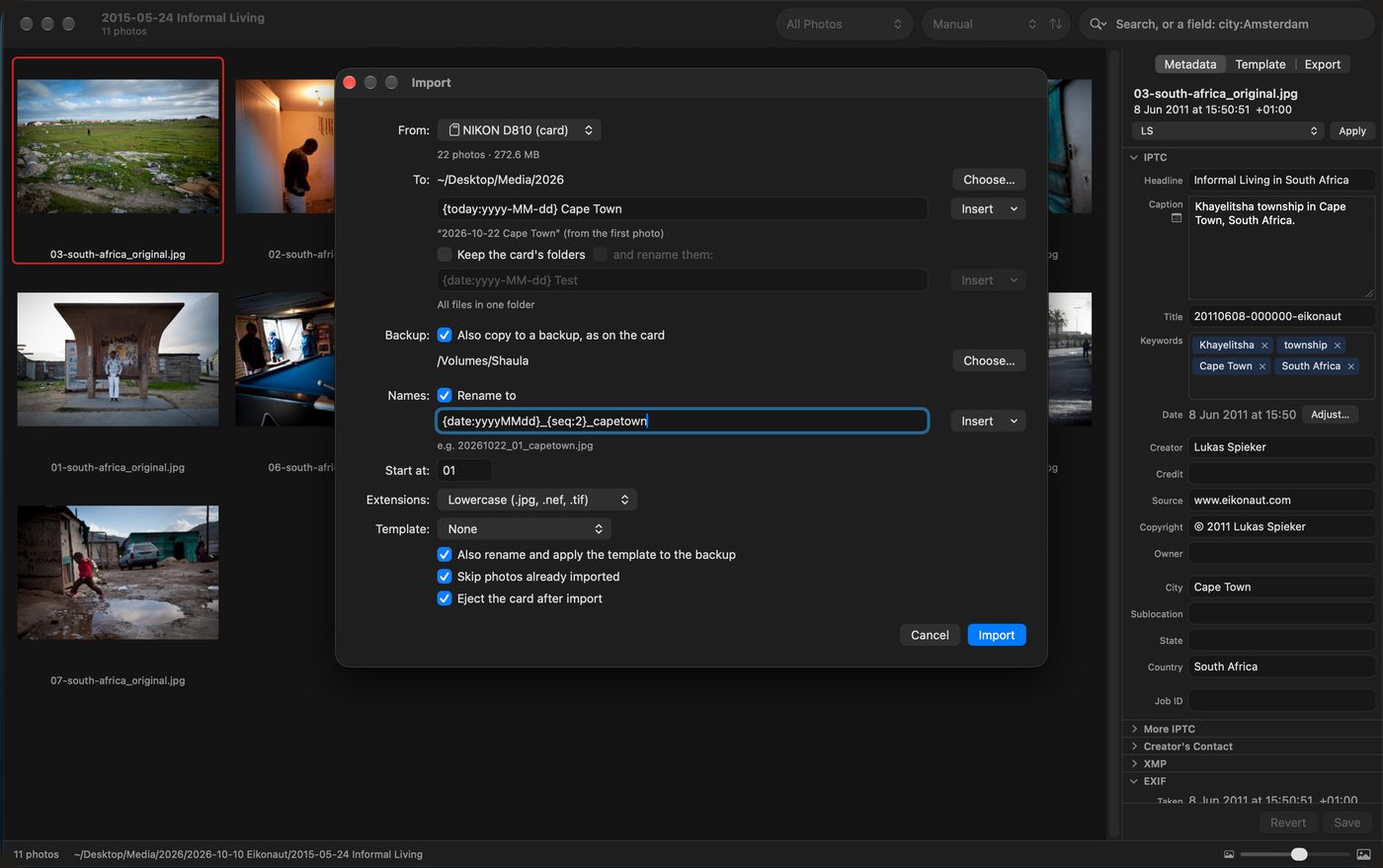
Import from a card
- Copies to a working folder and a backup drive at the same time.
- Every copy read back and compared before it gets its name.
- Rename and apply a template on the way in. Nothing is written on the card.
- Keep the card’s folders, a folder per job, or rename them, e.g.
{date:yyyy-MM-dd} {folder}.
Pick
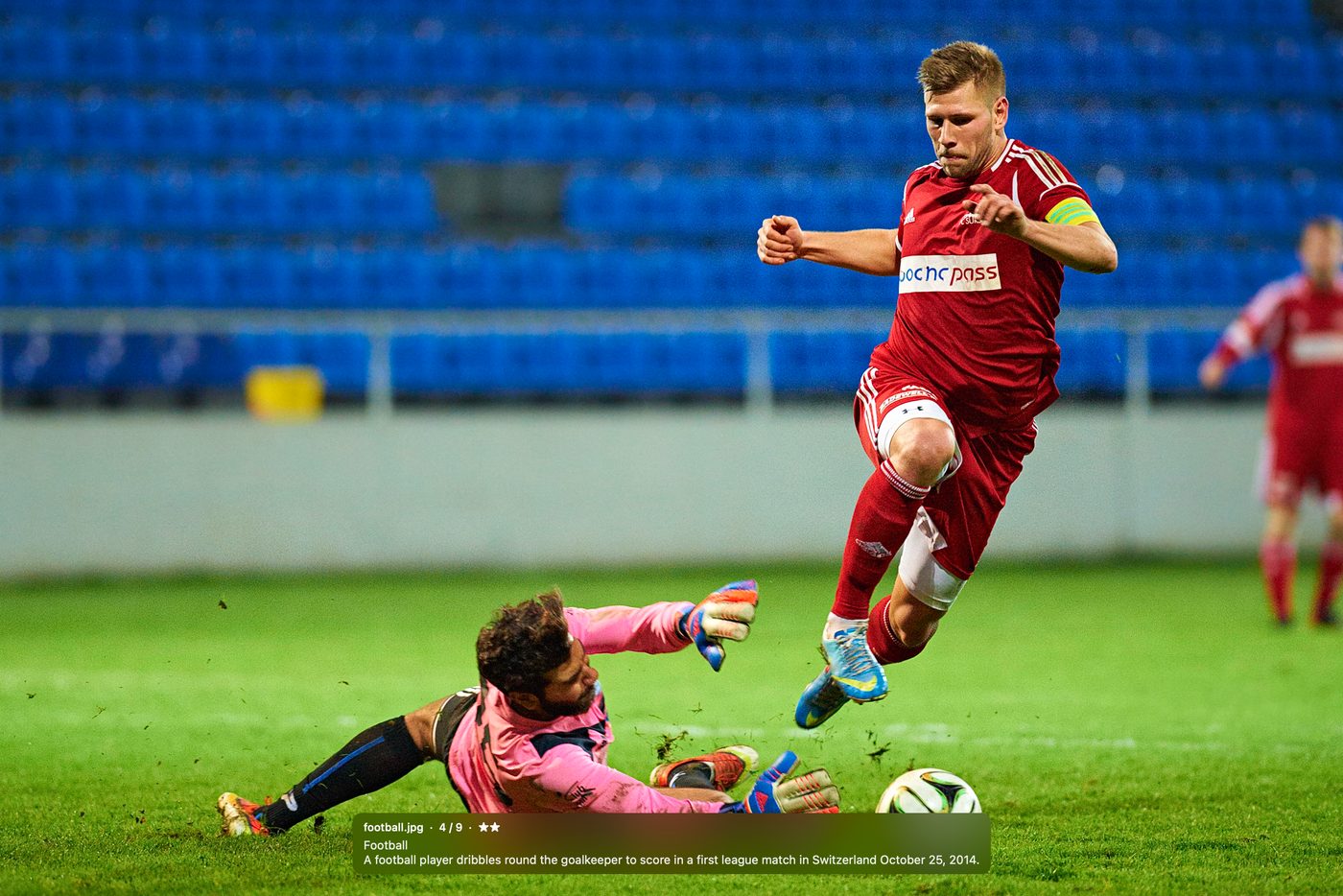
- 1–5 stars with one key, written into the file at once.
- Colour labels with ⌘1–⌘8, named as you like, shown as a dot in the grid.
- Lock a photo; filter by stars, label or locked.
- The camera’s voice memo plays with its photo (V) and stays with it when you rename or move it.
- Find by any field or date; replace text across captions.
- Open the pick in your photo editor with one shortcut.
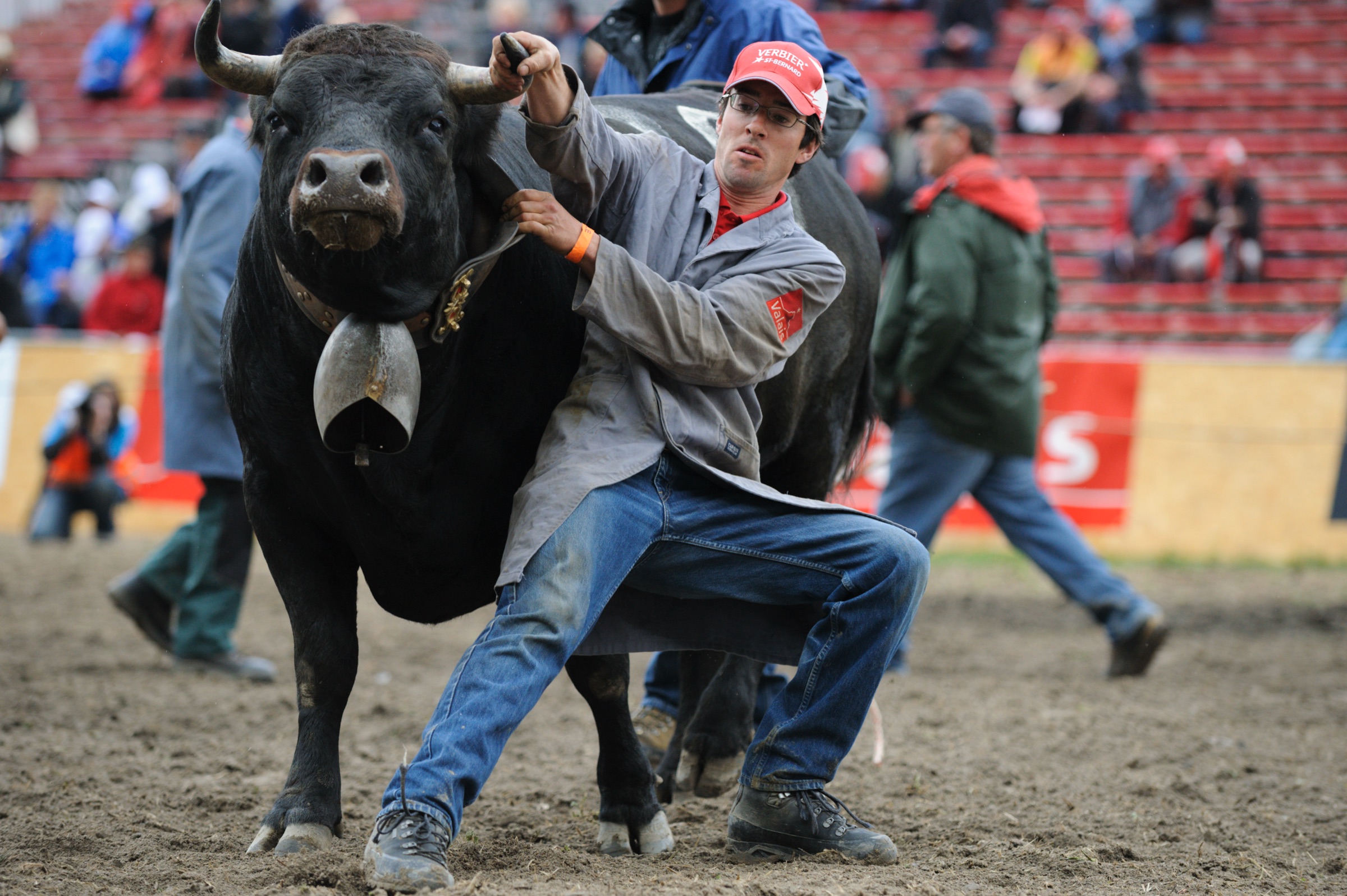
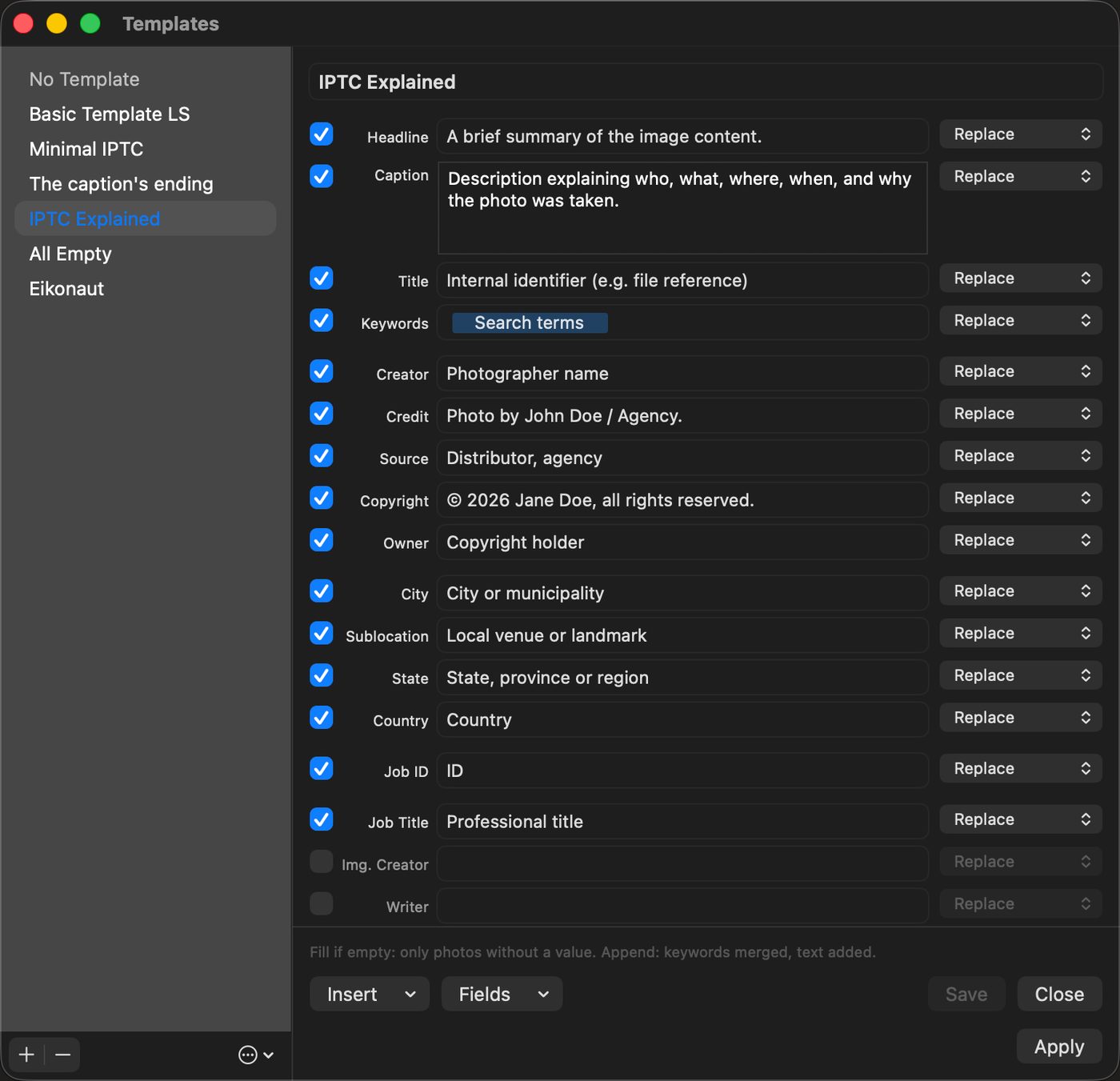
Caption
- Every IPTC Core field and the important Extension fields, in one inspector.
- Templates for what repeats; copy and paste metadata between photos.
- Variables in every text:
{city},{date},{headline},{seq}and more, the same in captions, file names and export. - Mark photos “not for AI training” (IPTC Data Mining).
- Correct the capture time; the camera’s original time is kept.
- Rename a photo in place: double-click its name in the inspector.
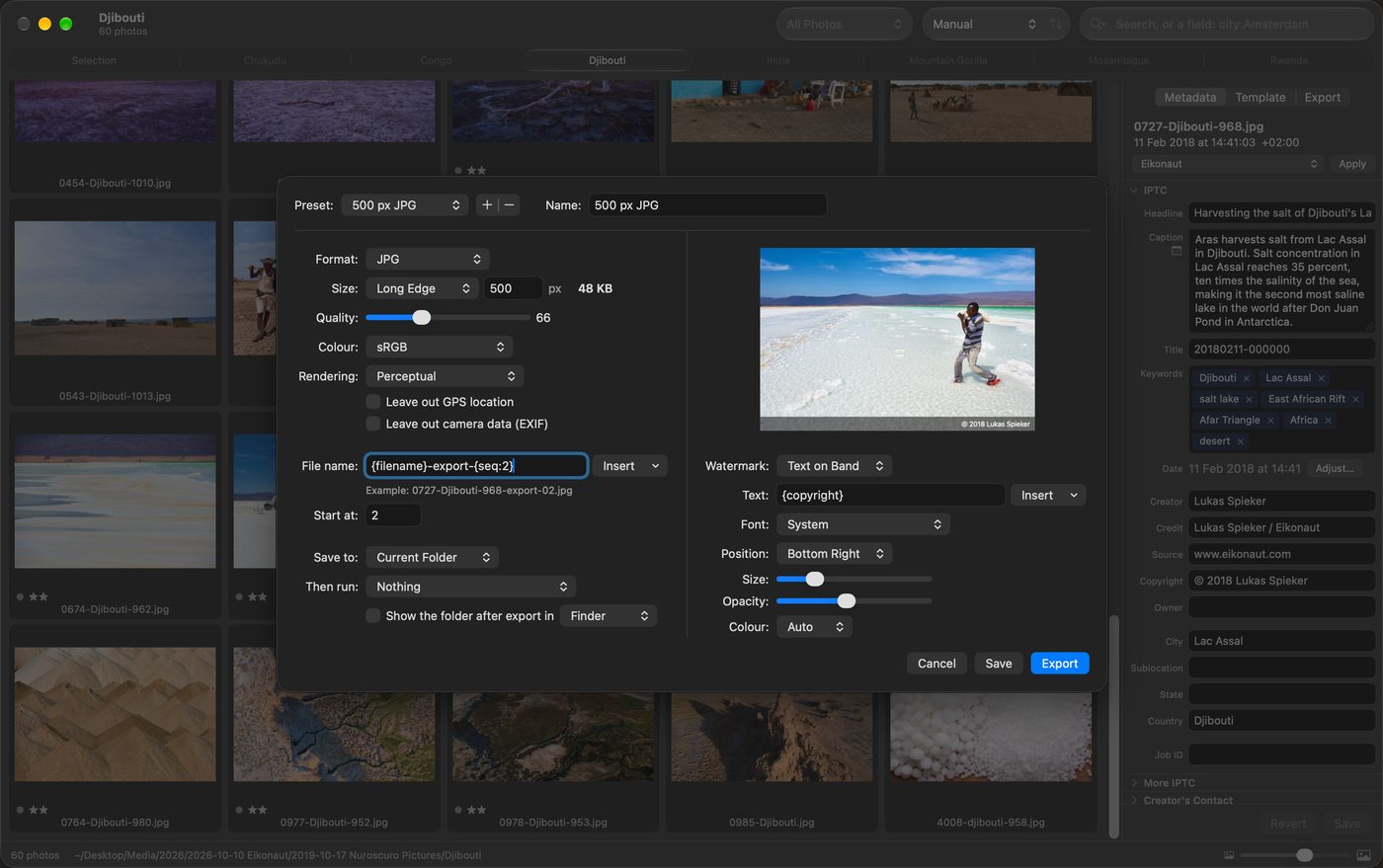
Export and deliver
- Presets: JPG or TIFF, size, sRGB or Adobe RGB, file name, leave out GPS.
- Crop without touching the original; lossless rotation.
- Visible watermark: text, text on a band, a large ©, or your logo.
- An export queue with log, pause and “Export again”.
- Your own upload script (SFTP, FTP, rclone) runs after the export.
Open and browse
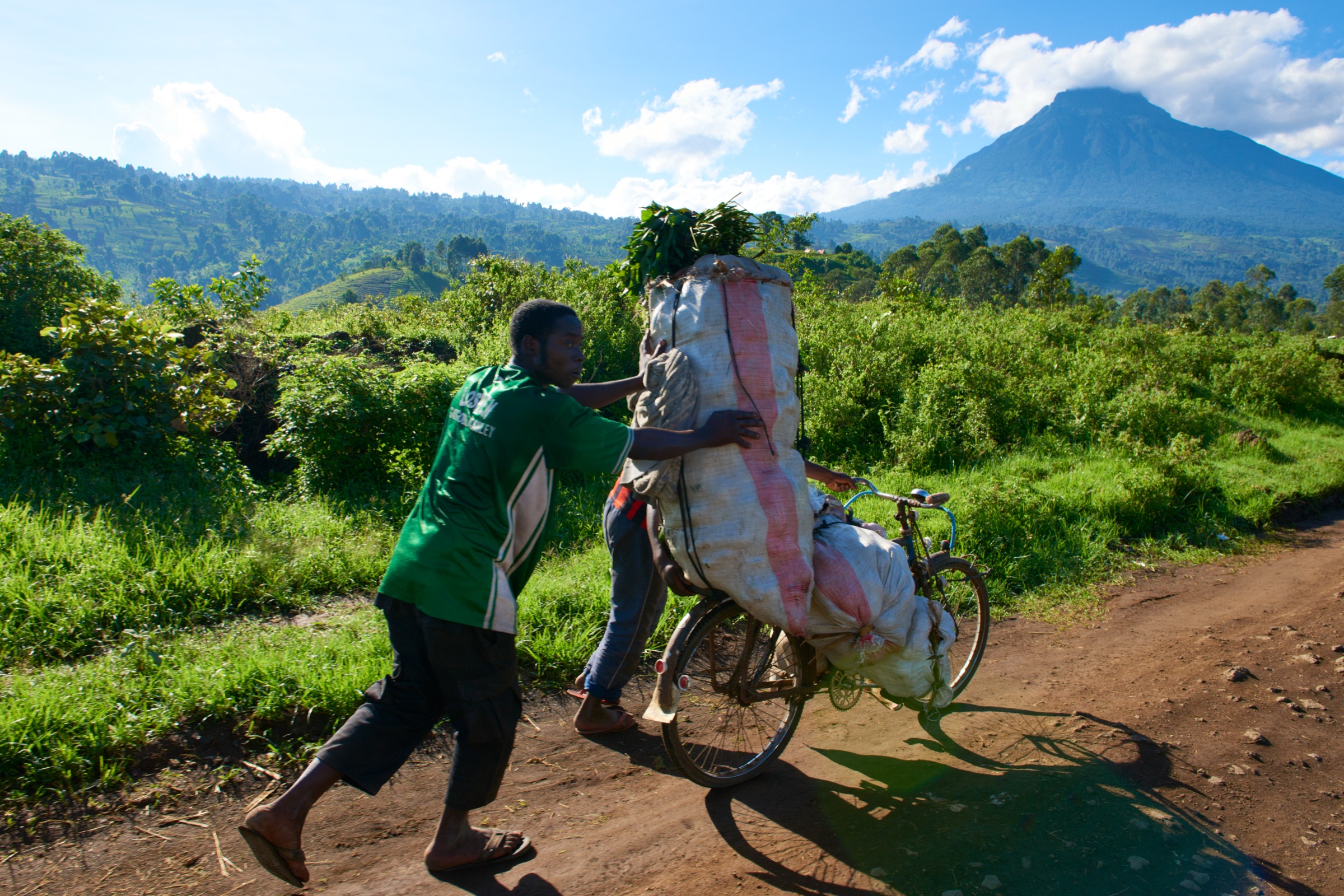
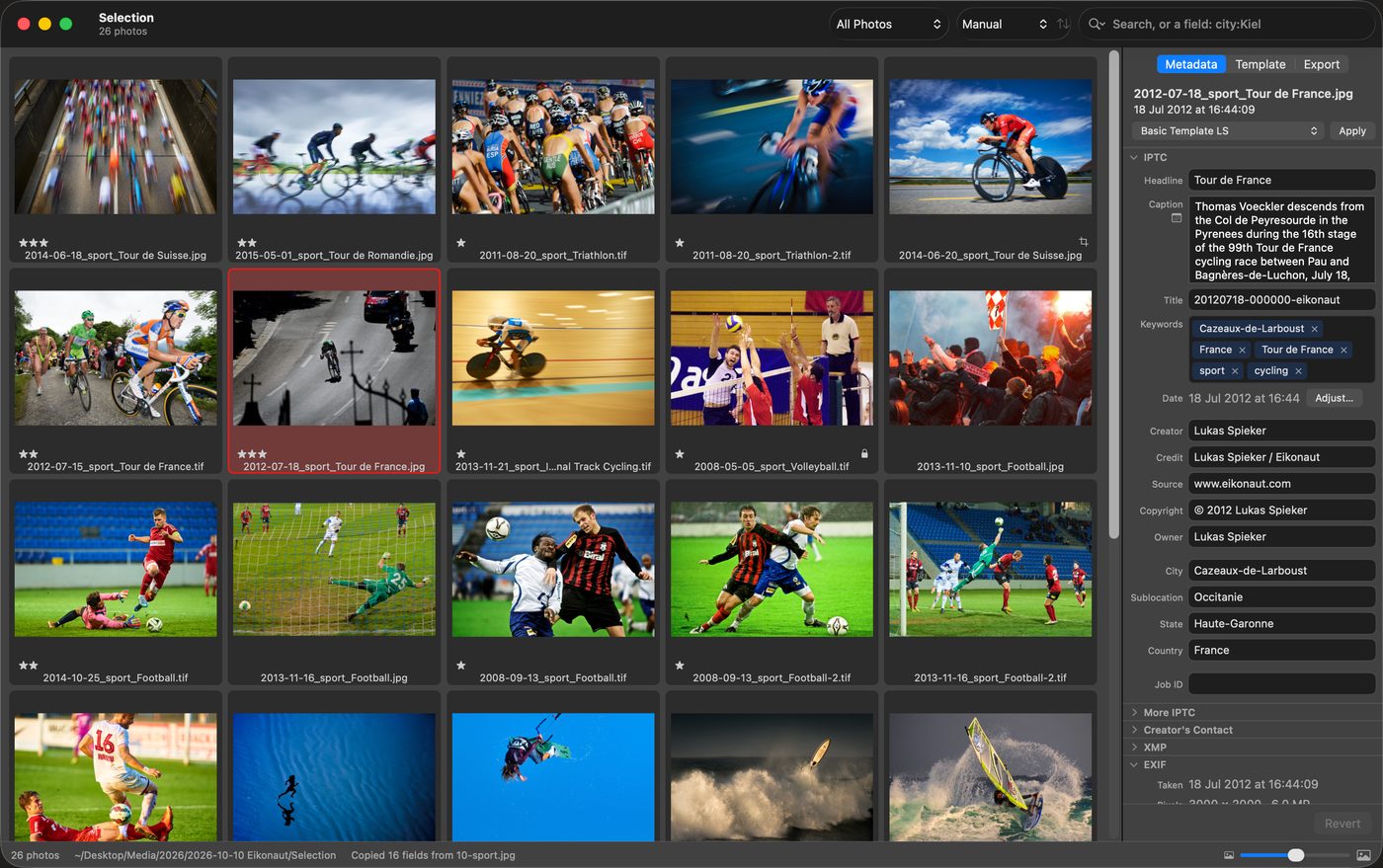
- Open any folder: on your Mac, a card, an external drive, the NAS, a cloud folder. It updates live while a card copies.
- JPG, TIFF, RAW (NEF, CR2, CR3, ARW, RAF, ORF, RW2, PEF, DNG), HEIC, HEIF, AVIF, PNG, WebP, GIF, PSD and video in one grid.
- RAW and JPG pairs, or RAW and HEIF, shown as one photo.
- Full screen, 1:1 view, a frame around the photo if you like.
- Light, dark or your own colours for background, tiles and text, e.g. a neutral grey that adds no colour next to the photos. All windows can take the background colour.
- The selection framed in grey, the system colour, chinagraph red as on a contact sheet, or any colour; the tile’s colour kept if you like.
- Sort by name, capture time, rating, label or your own order.
- Copy or move photos to another folder: drag them onto a tab, or choose Copy To or Move To (⌃⌘C, ⌃⌘M for the last folder), or New Folder with Selection. RAW, JPG, sidecar and voice memo go together, verified, and can be undone.
Video
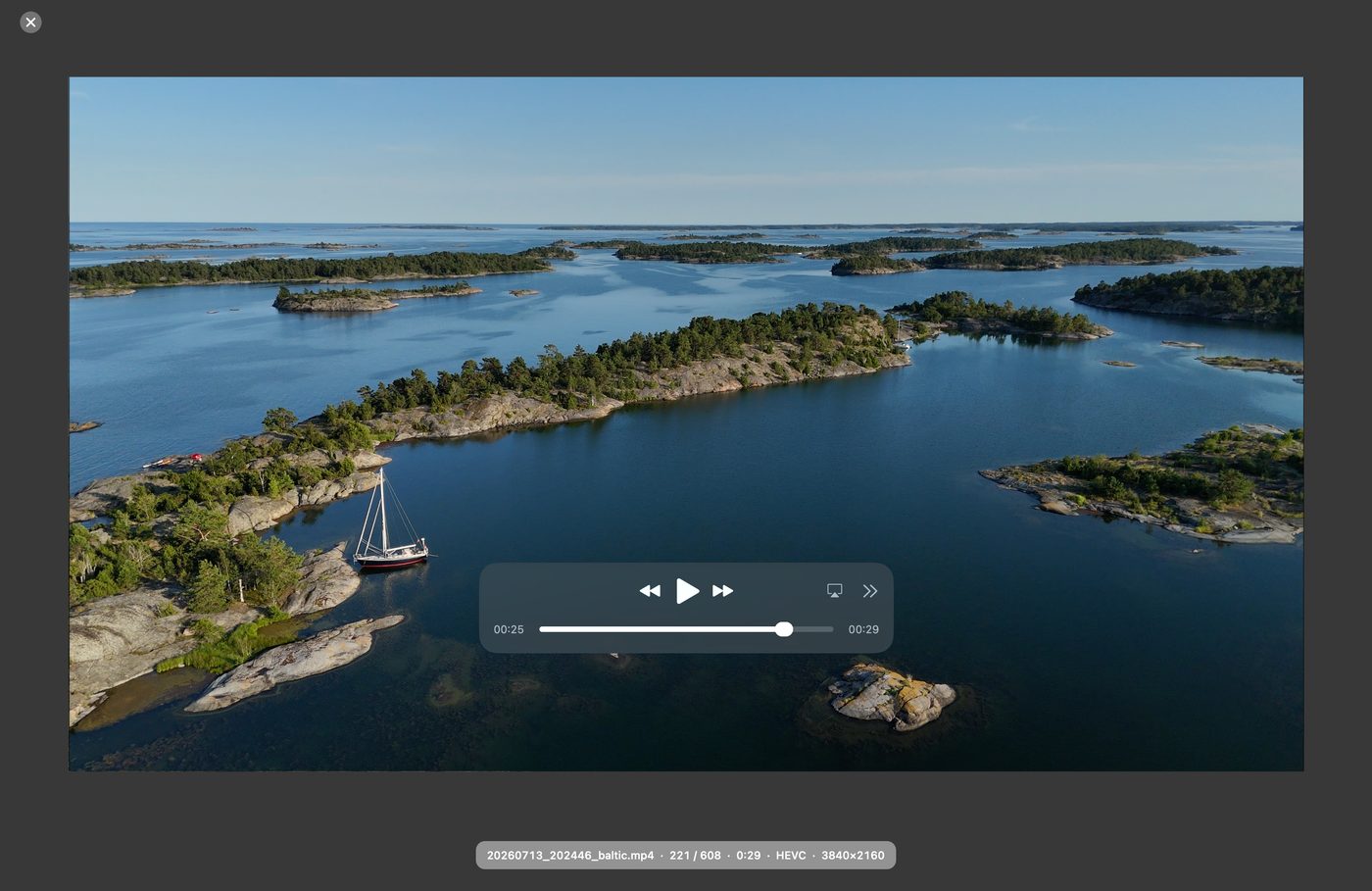
- Thumbnails, playback, stars and captions (in a sidecar; the clip is never changed).
- Trim a clip without re-encoding: the part you keep becomes a new clip with its date, place and caption; the original is never changed.
- Save any frame as a full-size still with the clip’s time, place and caption.
Safe by design
- Every metadata write is read back and checked before it counts.
- RAW, video, HEIC, AVIF, PNG, WebP, GIF and PSD files are never modified: their metadata goes into an XMP sidecar.
- Undo for every change, also after a restart.
- No account, no cloud, no tracking. The app goes online only when your upload script does.
- No AI. Crop and export only take pixels away, a watermark only if you add one; macOS’s text tools stay off in its fields until you turn them on.